What is DLP?
August 19, 2026







Get latest updates on Panzer IT security solutions and product news
Antivirus software plays an important role in protecting computers and business systems against malware, ransomware, spyware, and other cyber threats. However, installing or upgrading antivirus software can sometimes fail because of software conflicts, incomplete uninstallation, system compatibility issues, or other technical problems.
One common cause is the presence of another antivirus or endpoint security product that conflicts with the new software. Some security applications are designed to work alongside specific tools, while others may require the removal of incompatible products before installation.
In this guide, we explain the common reasons antivirus installation fails and the steps you can take to resolve the problem safely.
Why Does Antivirus Installation Fail?
Antivirus installation or upgrade problems can occur for several reasons, including:
Conflicting security software: Another antivirus, firewall, or endpoint protection product may prevent the new application from installing.Incomplete uninstallation: Remnants of previously removed security software may interfere with installation.Compatibility issues: The antivirus may not support your operating system, system architecture, or device configuration.Insufficient permissions: Installation may fail if the account lacks the necessary administrator privileges.Corrupted installation files: An incomplete download or damaged installer can interrupt the setup process.Pending system updates: An outdated operating system or pending restart may prevent installation from completing.Insufficient system resources Low disk space or other system limitations can affect installation.Identifying the cause before making changes can help prevent unnecessary troubleshooting.
How to Fix Antivirus Installation Problems
1. Check for Conflicting Antivirus Software
Running multiple real-time antivirus products on the same computer can cause compatibility issues, performance problems, or conflicts between security components.
Before installing a new product, check whether another antivirus or endpoint security application is already installed.
Avast and AVGAvira and Bitdefender ESET and KasperskyMcAfee and NortonQuick Heal and Trend MicroSophos and other enterprise endpoint protection productsMicrosoft Defender and other Windows security componentsThis is not a definitive list of incompatible products. Compatibility depends on the specific versions, configurations, and vendor requirements. Some products can coexist, and Microsoft Defender behaves differently depending on the Windows configuration and installed security provider.
What to do: Review the installation instructions for your chosen antivirus and confirm whether the existing security product must be removed.
2. Uninstall the Previous Security Application Correctly
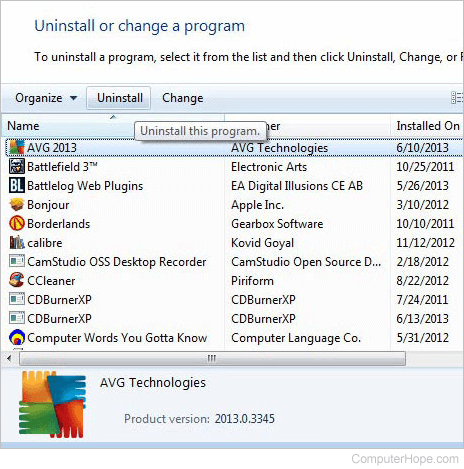
If the vendor confirms that an existing product is incompatible, uninstall it using the appropriate procedure.
Follow these steps:
Open Windows Settings.Navigate to Apps and then Installed apps, or the equivalent option in your Windows version.Locate the incompatible security application.Select Uninstall and follow the on-screen instructions.Restart the computer if prompted.Some security applications install additional drivers, services, or components that may remain after standard uninstallation. In such cases, use the official removal or cleanup utility provided by the software vendor.
Avoid deleting security files, drivers, or registry entries manually unless directed by qualified support personnel.
3. Download a Fresh Antivirus Installer
A damaged or incomplete installation file can cause setup errors.
To reduce this risk:
Download the installer from the official vendor website or an authorized source.Verify that the installer is intended for your operating system and device.Avoid modified installers and unofficial download websites.Download a fresh copy if the existing file appears corrupted.Using a current, authentic installer helps ensure that you are installing the intended software version.
4. Run the Installer with Appropriate Permissions
Some antivirus products require administrator privileges to install services, drivers, and system-level protection components.
If the installer fails because of permissions, sign in with an authorized administrator account and follow the vendor's installation instructions. Where appropriate, right-click the installer and select Run as administrator.
Do not bypass organizational security policies or use an unauthorized administrator account on a managed business device.
5. Check Windows Compatibility and Updates
Before installing antivirus software, confirm that your system meets the product's requirements.
Supported Windows version and system architecture.Available disk space and required system resources.Pending operating system updates.Whether a restart is required to complete previous installations.Product-specific hardware, driver, or software requirements.Install relevant updates from trusted sources and restart the system when necessary. If the device is managed by your company's IT team, coordinate changes with them.
6. Use the Vendor's Official Removal Tool
If a previous security product cannot be removed normally, its official cleanup utility may help remove leftover components that interfere with a new installation.
Confirm that it is provided by the original software vendor.Verify that it supports your product version and operating system.Follow the vendor's instructions carefully.Save your work and prepare for a system restart.On business devices, obtain IT approval before removing endpoint protection.Third-party uninstall tools should be evaluated carefully, especially when they request elevated permissions or modify system components.
7. Check the Installation Error Message
If installation still fails, record the exact error message or error code.
The message may indicate whether the issue relates to permissions, compatibility, missing components, an existing installation, or another problem.
Review the software vendor's official troubleshooting documentation for that specific error. If the message is unclear, contact the vendor's technical support team and provide the product version, Windows version, and installation logs where requested.
What If You Cannot Install Antivirus on a Business Computer?
In a corporate environment, antivirus installation problems may involve centralized security policies, endpoint management agents, existing endpoint detection and response (EDR) tools, or software deployment restrictions.
Verify compatibility between the existing and proposed security products.Check endpoint management policies and installation permissions.Review installation logs and security alerts.Coordinate removal and deployment through approved procedures.Confirm that the replacement protection is active and reporting correctly.Avoid leaving business devices unprotected while changing security products. Plan the transition carefully, particularly for servers and critical endpoints.
How to Prevent Antivirus Installation Problems in the Future
Organizations can reduce installation failures by adopting a consistent software deployment process.
Maintain a software inventory: Keep track of installed antivirus, EDR, firewall, and endpoint management products.
Check compatibility before deployment: Review the new product's system requirements and coexistence guidelines.
Use approved installation packages: Obtain software from trusted vendor sources and verify that the package is suitable for the target environment.
Test changes before a full rollout: Use a pilot group to identify conflicts before deploying security software across the organization.
Document installation and removal procedures: Maintain clear instructions for IT teams and users.
Verify protection after installation: Confirm that the product is active, updated, and reporting correctly to the appropriate management console.
Antivirus installation failures can result from conflicting security applications, incomplete uninstallation, compatibility issues, insufficient permissions, or damaged installation files.
The best approach is to identify the underlying cause, check the software vendor's requirements, remove incompatible applications only when necessary, and use official installation and cleanup tools.
For business environments, a controlled deployment process helps minimize downtime and ensures that endpoints remain protected throughout the transition.
Need help with endpoint security or antivirus deployment? Panzer IT can help your organization explore suitable cybersecurity solutions based on its infrastructure, compatibility requirements, and security needs.
Contact Panzer IT to discuss your endpoint protection requirements.
August 19, 2026

August 05, 2026

February 14, 2025